
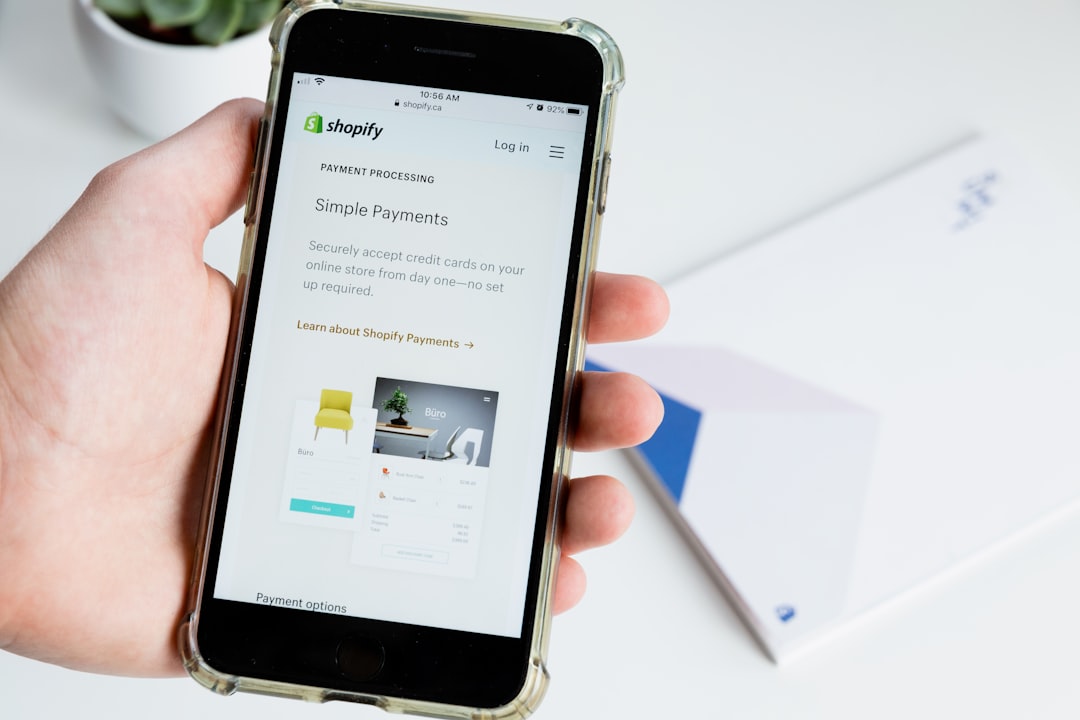
What Is Shopify Payments and Why Does It Matter?
If you're launching a new online store, one of the first things you need to figure out is how to actually get paid. Shopify Payments is Shopify's built-in payment processing solution, and it's one of the easiest ways to start accepting credit cards, debit cards, and digital wallets without needing a separate third-party payment gateway.
The biggest advantage of using Shopify Payments is that it's fully integrated into your store. You don't need to create accounts on multiple platforms or worry about complex API setups. Everything — from checkout to payouts — is managed directly inside your Shopify dashboard. Plus, when you use Shopify Payments, you avoid the additional transaction fees that Shopify charges when you use external payment providers.
Before diving in, it's worth noting that Shopify Payments is currently available in select countries including the United States, Canada, the United Kingdom, Australia, and several European nations. If you're based in one of these regions, you're good to go.
How to Activate Shopify Payments on Your Store
Setting up Shopify Payments is straightforward, even if you've never run an online store before. Follow these steps to get started:
- Log in to your Shopify admin panel and navigate to Settings in the bottom-left corner.
- Click on "Payments" from the settings menu. You'll see a section for Shopify Payments at the top of the page.
- Click "Complete account setup" or "Activate Shopify Payments" — the exact wording may vary depending on your store's current status.
- Enter your business details, including your business type (individual or company), legal business name, address, and EIN or Social Security Number for tax purposes.
- Add your banking information so Shopify knows where to send your payouts.
- Verify your identity by providing the required personal identification details.
- Click "Save" to complete the setup.
Once approved, Shopify Payments will be live on your store and customers can immediately begin checking out using their preferred payment methods.
Configuring Your Payment Settings for the Best Results
Activating Shopify Payments is just the beginning. To make sure your store runs smoothly and you get paid on time, spend a few minutes reviewing and configuring your payment settings.
Set Your Payout Schedule
Inside the Payments section of your settings, you can choose how often you receive payouts — daily, weekly, or monthly. For beginners, a daily or weekly schedule is usually the most practical choice since it keeps your cash flow consistent. You can adjust this at any time based on your business needs.
Enable Multiple Payment Methods
Shopify Payments supports major credit and debit cards like Visa, Mastercard, and American Express. You can also enable accelerated checkout options like Shop Pay, Apple Pay, and Google Pay. These one-click checkout options significantly reduce cart abandonment and improve the customer experience, so it's strongly recommended to turn them all on.
Review Your Fraud Protection Settings
Shopify Payments includes built-in fraud analysis tools. Under your payment settings, you'll find options to automatically cancel or flag high-risk orders. As a beginner, enabling automatic fraud filters can protect you from chargebacks and fraudulent transactions without requiring you to manually review every order.
Ready to start your Shopify store? Get 3 days free + 3 months for $1/month, plus a complete first-sales training — 100% free.
Start now — free training included3 days free · 3 months for $1/mo · Training included
Adding Alternative Payment Providers
Even if you activate Shopify Payments, you might want to offer additional payment options to serve a wider audience. Shopify supports hundreds of third-party payment gateways including PayPal, Stripe, and many regional providers.
To add an alternative provider, go to Settings → Payments and scroll down to the "Alternative payment methods" or "Third-party providers" section. Keep in mind that using a third-party gateway alongside Shopify Payments will incur a small additional transaction fee (typically 0.5%–2% depending on your Shopify plan). If you can avoid it, sticking with Shopify Payments alone is the most cost-effective route.
Understanding Shopify Payments Fees
Every payment processor charges fees, and Shopify Payments is no exception. Here's a quick overview of what to expect:
- Basic Shopify plan: 2.9% + 30¢ per online transaction
- Shopify plan: 2.6% + 30¢ per online transaction
- Advanced Shopify plan: 2.4% + 30¢ per online transaction
In-person transactions (if you're using Shopify POS) are charged at lower rates. As your store grows and you upgrade your plan, your transaction fees decrease — another incentive to scale your business over time.
Common Issues and How to Fix Them
Even with a straightforward setup process, beginners sometimes run into a few hiccups. Here are the most common problems and quick fixes:
- Account on hold: This usually happens if Shopify needs additional identity verification. Check your email and submit any requested documents promptly.
- Payouts not arriving: Double-check that your bank account details are entered correctly and that your account has been fully verified.
- Payment method not showing at checkout: Make sure the payment method is enabled in your settings and that your store is not in password-protected mode.
- Country restrictions: If Shopify Payments isn't available in your country, consider using PayPal or a local gateway as your primary processor.
Most issues are resolved quickly through Shopify's support chat, which is available 24/7 for all plan subscribers.
Ready to start your Shopify store? Get 3 days free + 3 months for $1/month, plus a complete first-sales training — 100% free.
Start now — free training included3 days free · 3 months for $1/mo · Training included
Frequently Asked Questions
- Is Shopify Payments free to set up?
- Yes, there are no setup fees to activate Shopify Payments. You only pay a small percentage fee per transaction, which varies depending on your Shopify subscription plan.
- Can I use PayPal and Shopify Payments at the same time?
- Yes, you can offer both simultaneously. Just be aware that using PayPal as a third-party provider alongside Shopify Payments may incur an additional transaction fee charged by Shopify.
- How long does it take to receive my first payout from Shopify Payments?
- Your first payout typically takes between 3 to 5 business days to arrive after your first sale. Subsequent payouts follow the schedule you set in your payment settings.
