
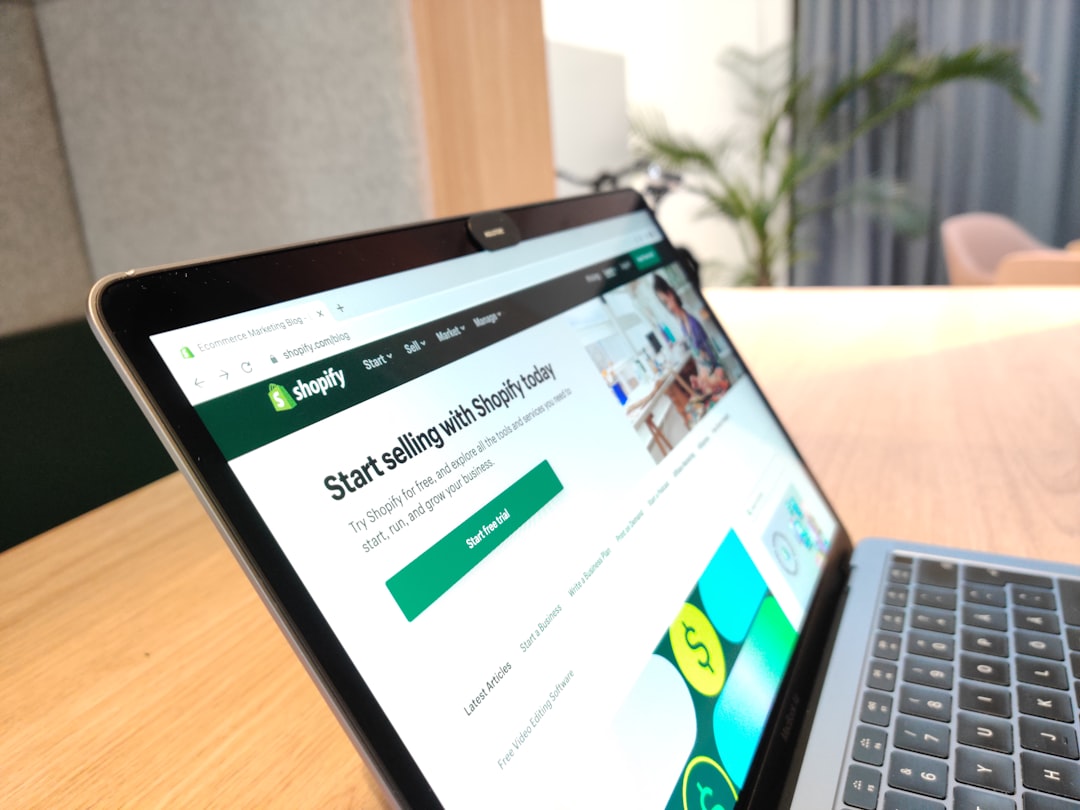
Why You Can Launch a Shopify Store in Just One Day
Starting an online store used to feel overwhelming — complicated code, expensive developers, and weeks of setup. Shopify changed all of that. Today, even a complete beginner can go from zero to a fully functional online store in a single day. The platform is designed to be intuitive, with drag-and-drop tools, built-in payment processing, and thousands of ready-to-use themes.
This checklist walks you through every step you need to take, in the right order, so you don't waste time guessing what to do next. Whether you're selling handmade crafts, digital downloads, or dropshipping products, this guide has you covered.
Step 1: Create Your Shopify Account and Choose a Plan
The first thing you need to do is sign up for a Shopify account. Head to Shopify's website and start a free trial — no credit card required upfront. You'll be asked to enter your email address, create a password, and give your store a name.
Don't stress too much about your store name at this stage. You can always update your display name later, and your custom domain will be what customers actually see. Once your account is created, you'll land on the Shopify admin dashboard, which is your control center for everything.
- Choose a store name that reflects your brand or niche
- Select your country and currency during the initial setup wizard
- Explore the free trial before committing to a paid plan
- The Basic plan is more than enough to get started for most beginners
Step 2: Pick a Theme and Customize Your Store Design
Your store's appearance is the first thing customers notice. Shopify offers a range of free and premium themes in its Theme Store. For beginners, a free theme like Dawn or Sense is a great starting point — they're clean, mobile-friendly, and easy to customize.
To install a theme, go to Online Store → Themes in your dashboard. Once installed, click "Customize" to open the visual editor. Here you can change colors, fonts, upload your logo, and rearrange sections without touching a single line of code.
Key Design Elements to Set Up
- Logo: Upload a simple, clear logo or use a text-based store name
- Color scheme: Stick to 2-3 brand colors for a professional look
- Homepage sections: Add a hero banner, featured products, and a brief about section
- Navigation menu: Keep it simple with links to your main collections and contact page
Step 3: Add Your Products
Now it's time to add what you're actually selling. Go to Products → Add Product in your dashboard. Fill in the product title, a detailed description, price, and upload high-quality images. Good product photos and honest descriptions are two of the biggest factors that influence whether a visitor buys or bounces.
If you have multiple products, organize them into Collections (like "Men's Clothing" or "Gift Sets"). This makes it easier for customers to browse and helps your store look more professional from day one.
Product Listing Checklist
- Write a clear, benefit-focused product title
- Include dimensions, materials, or specs where relevant
- Add at least 2-3 high-resolution photos per product
- Set inventory tracking so you don't oversell
- Add product tags to make searching easier
Ready to start your Shopify store? Get 3 days free + 3 months for $1/month, plus a complete first-sales training — 100% free.
Start now — free training included3 days free · 3 months for $1/mo · Training included
Step 4: Set Up Payments, Shipping, and Taxes
Before your store can actually make money, you need to configure how you'll get paid and how orders will be fulfilled. These settings live under the Settings menu in your Shopify dashboard.
Payments
Shopify Payments is the easiest option for most beginners — it's built in, requires no third-party account, and supports major credit cards and digital wallets. If Shopify Payments isn't available in your country, you can connect PayPal or another supported payment gateway.
Shipping
Set up your shipping zones and rates under Settings → Shipping and Delivery. For beginners, offering free shipping on all orders (built into your product price) or flat-rate shipping are the simplest options. You can always get more sophisticated later.
Taxes
Shopify can automatically calculate taxes based on your location. Enable this under Settings → Taxes and Duties. Always double-check the rules for your region, and consult a local accountant if you're unsure about your obligations.
Step 5: Connect a Custom Domain and Launch
Your default Shopify URL will look something like yourstore.myshopify.com. Before you launch, connect a custom domain to look professional and build trust. You can buy a domain directly through Shopify or connect one you've already purchased from a registrar like GoDaddy or Namecheap.
Once your domain is connected, do a final walkthrough of your store. Place a test order, check that all links work, and preview your store on mobile. When everything looks good, go to Online Store → Preferences and remove the password protection to make your store public.
Pre-Launch Final Checklist
- Custom domain connected and working
- All product pages complete with images and descriptions
- Payment method tested and active
- Shipping rates configured
- Contact page and return policy added
- Store password removed so the public can access it
You're Open for Business — What Comes Next
Setting up your Shopify store in one day is absolutely achievable when you follow a clear plan. The most important thing is to get your store live rather than waiting for everything to be perfect. You can always refine your design, add more products, and optimize your pages over time.
Once your store is live, your next focus should be driving traffic. Start with social media, share your store with your network, and consider setting up basic SEO settings under Online Store → Preferences. Every big Shopify success story started with exactly what you just built today — a working store and the courage to launch it.
Ready to start your Shopify store? Get 3 days free + 3 months for $1/month, plus a complete first-sales training — 100% free.
Start now — free training included3 days free · 3 months for $1/mo · Training included
Frequently Asked Questions
- Do I need any technical skills to set up a Shopify store?
- No technical skills are required. Shopify is built for beginners and uses a visual drag-and-drop editor. You can build a complete store without writing any code.
- How much does it cost to start a Shopify store?
- Shopify offers a free trial so you can build your store before paying anything. After the trial, plans start at around $39/month, and you'll also need to budget for a custom domain, which typically costs $10-15 per year.
- Can I really launch a Shopify store in one day?
- Yes, especially if you follow a structured checklist like this one. Most beginners can complete the core setup — account creation, theme customization, product listings, and payment setup — within a few hours.
